Using the Dashboard
Use the ImageToLocation dashboard to upload photos, monitor processing status, reopen analysis records, and manage your AI photo geolocation history.
The dashboard is the main workspace for uploading photos and returning to previous analyses.
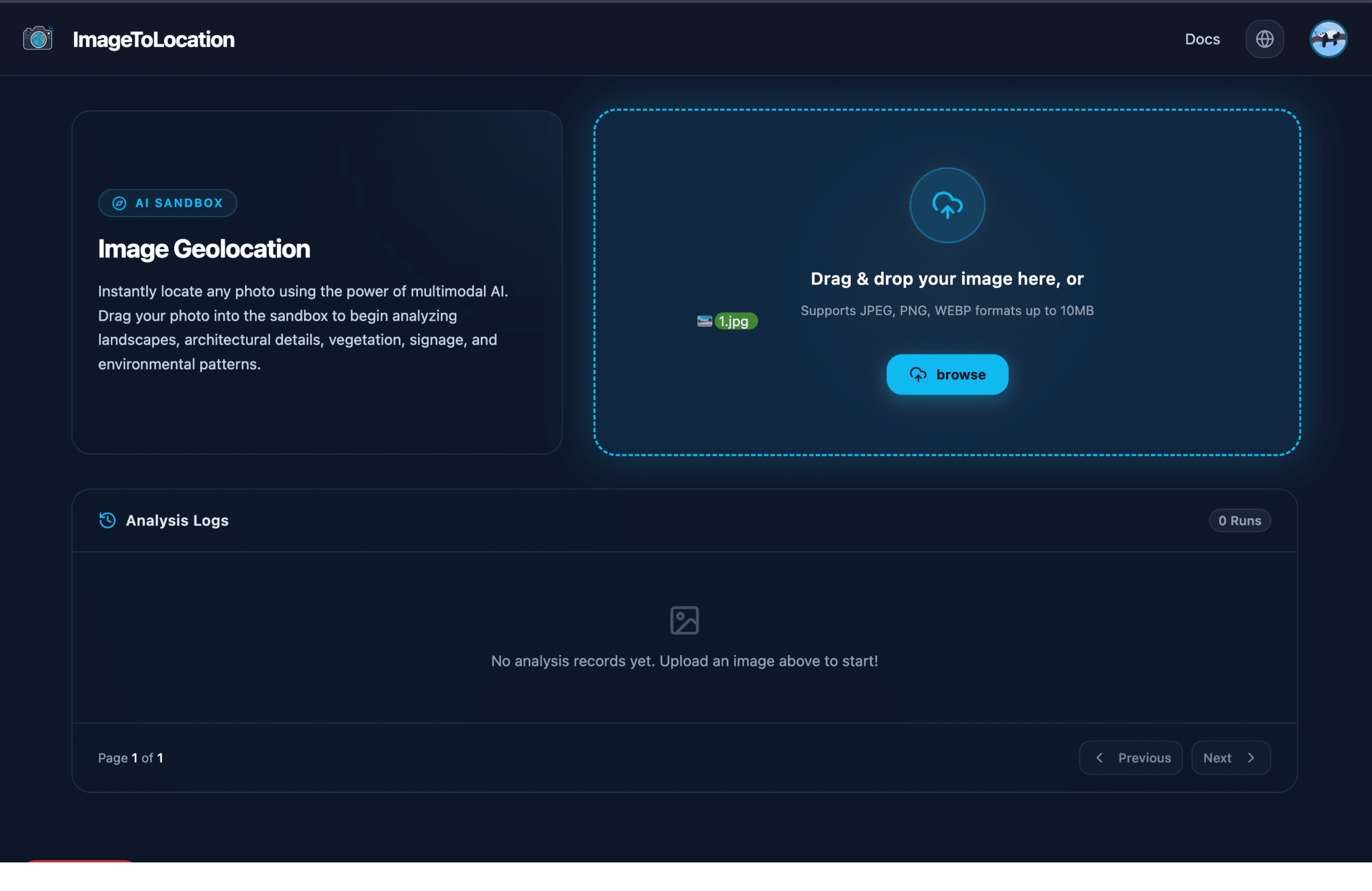
Upload a Photo
Use the AI Sandbox upload area to drag and drop a photo, or select browse to choose a file from your device. The dashboard accepts JPEG, PNG, and WebP images up to 10MB and rejects files that are not images.
When a file is selected, the upload area shows the filename while ImageToLocation creates an analysis record and opens the detail page for that record.
Analysis Records
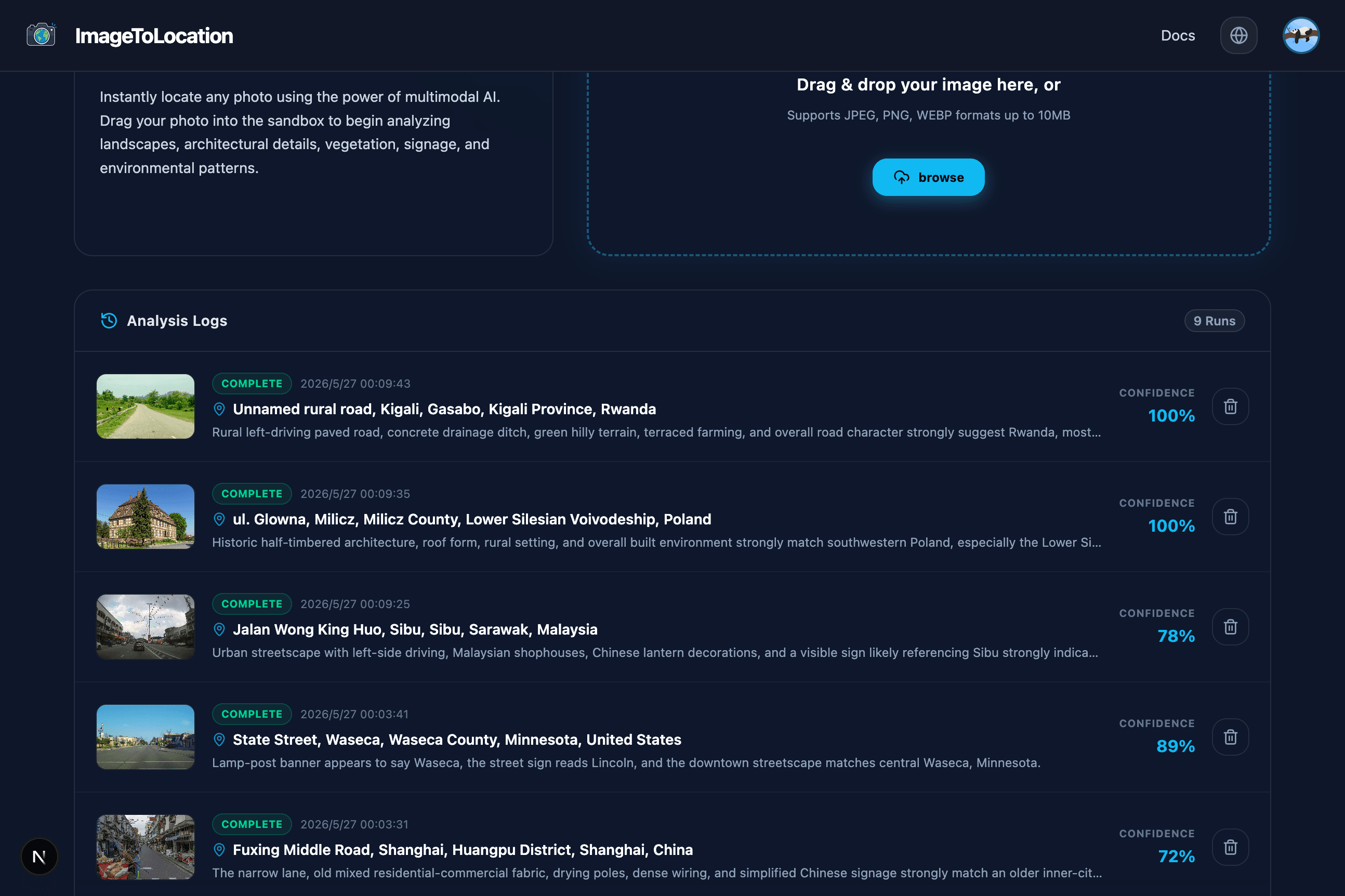
The Analysis Logs list shows your previous analysis runs. Each record can include:
- Status:
processing,complete, orfailure - Created date and time
- Image thumbnail
- Top candidate location
- Reasoning preview
- Confidence score
Select any record to reopen the full map and reasoning view.
If you have not uploaded anything yet, the logs area shows an empty state and prompts you to upload an image above.
Status Meanings
| Status | Meaning |
|---|---|
processing | The image was uploaded and the AI analysis is still running. |
complete | Results are ready to review. |
failure | The analysis could not be completed. Open the record to check the failure message, then try another photo if needed. |
Pagination
Use Previous and Next at the bottom of the logs list to move through older analyses when you have more than one page of results.
Tips
- Upload one image at a time for the clearest history.
- Reopen completed records when comparing similar photos.
- If a record stays in
processinglonger than expected, refresh the page before uploading again.